

Setup your Satochip with Satochip-Connect
1. Download Satochip-Connect
Satochip-Connect is a powerful mobile wallet built for EVM networks. It lets you easily manage your ETH and ERC-20 tokens, as well as assets across popular networks like Arbitrum, Polygon, and Base.
With built-in WalletConnect support, you can seamlessly connect to dApps, sign transactions and messages, and manage multiple accounts – all from one app.
2. Initialize your Satochip with a PIN code
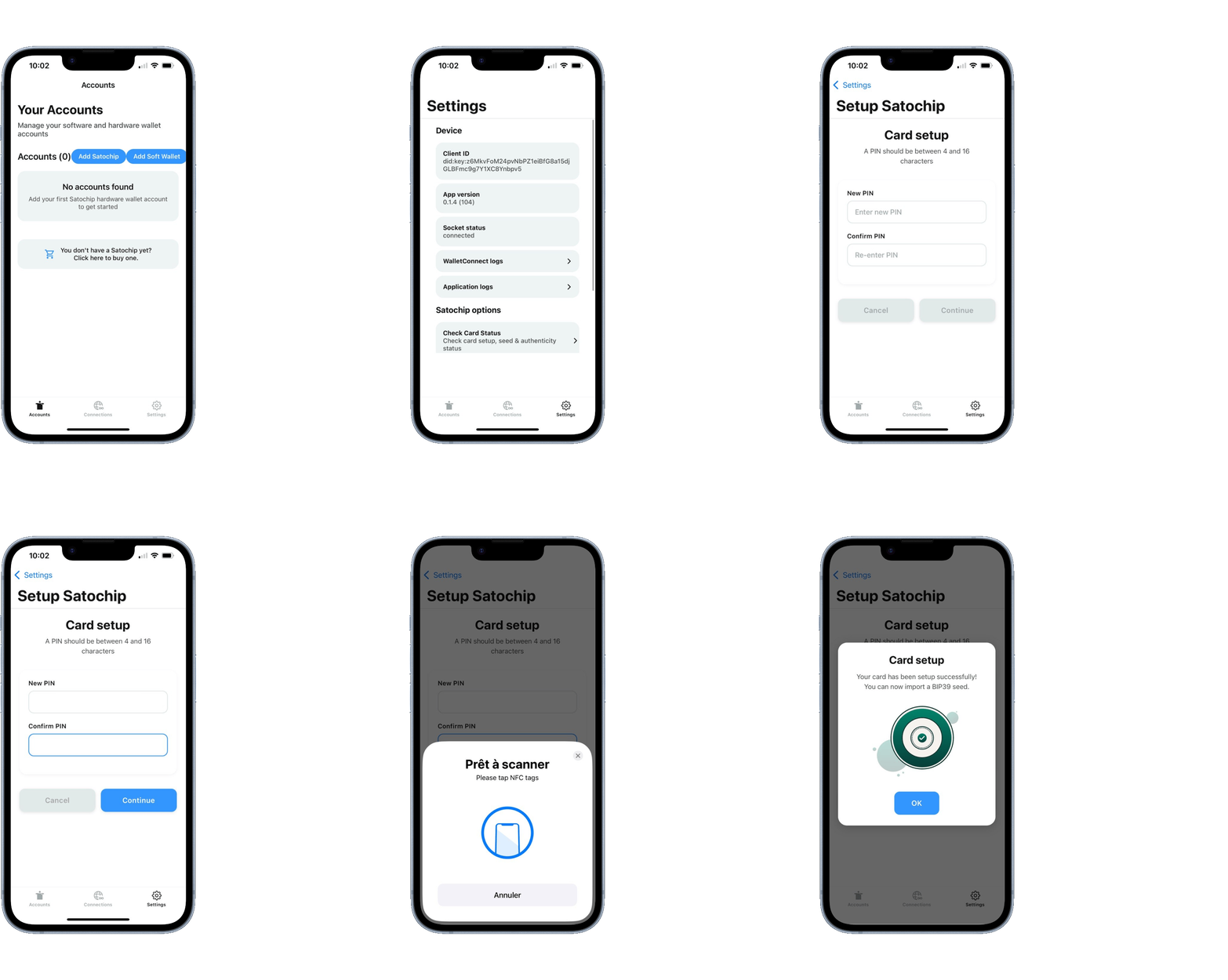
If your Satochip hardware wallet is already initialized (with a PIN code and a seedphrase), go to Step 4.
Congratulations! Your Satochip hardware wallet is now initialized with your personal PIN code.
3. Import or generate your backup seedphrase
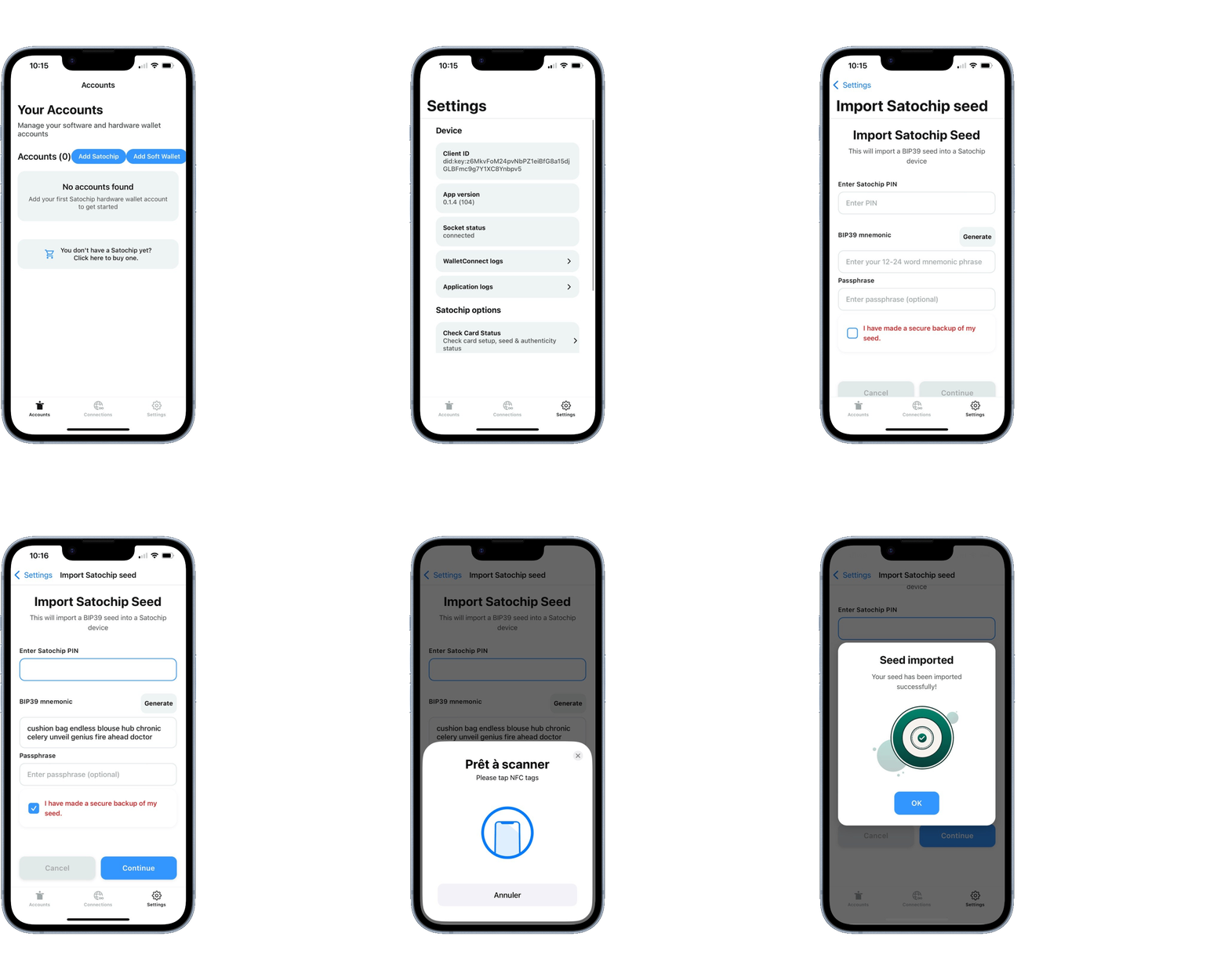
Now that your Satochip hardware wallet has a PIN code, we can seed it with a seedphrase.
Congratulations! Your Satochip hardware wallet is now fully initialized and ready to be used.
(*) Be sure to make a backup of your seedphrase (and its passphrase) on your Seedkeeper smartcard.
4. Add your Satochip hardware wallet account
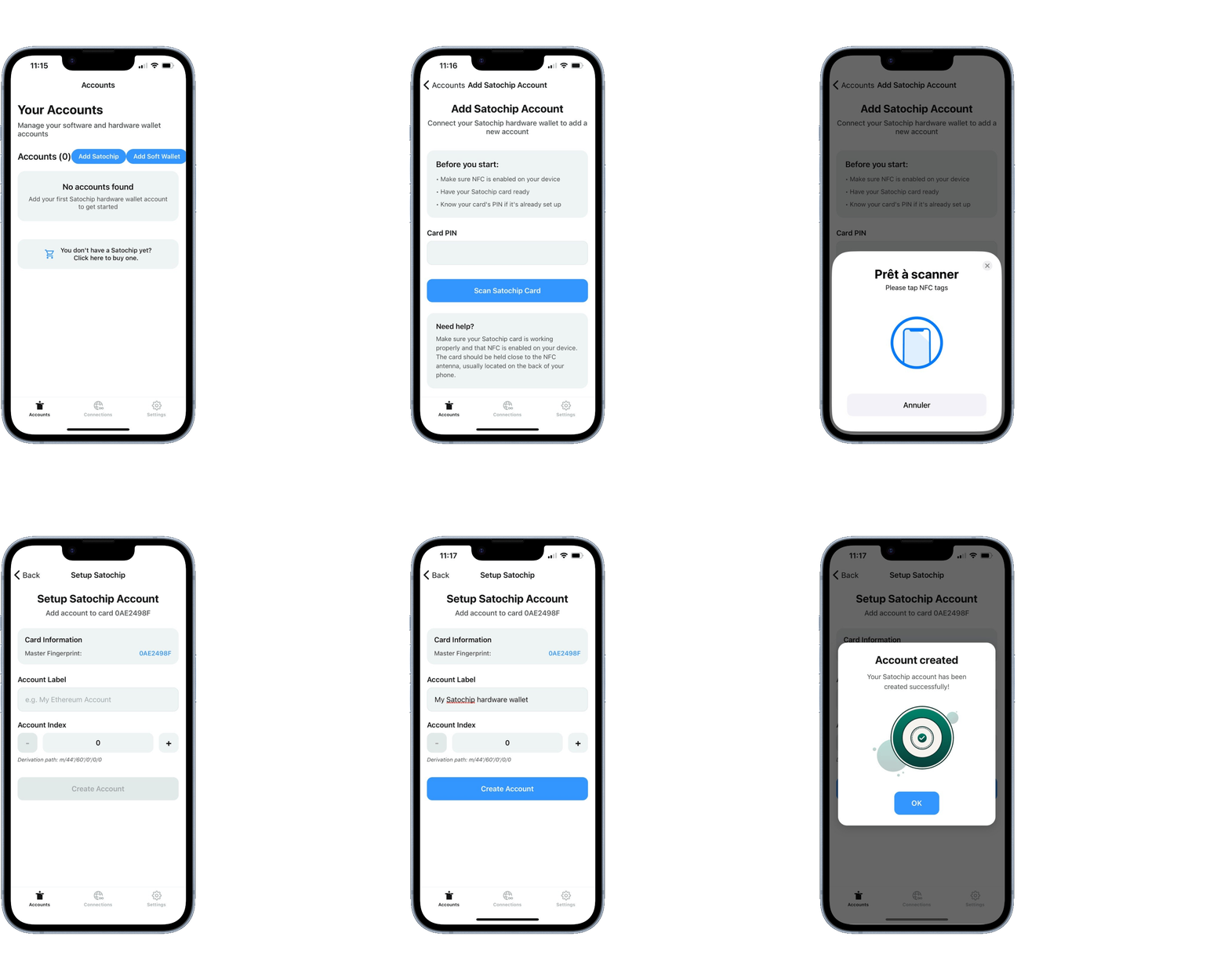
The goal is to connect your newly initialized Satochip hardware wallet to the app, allowing you to manage your crypto securely.
Congratulations! Your Satochip hardware wallet is now ready to use to send and receive tokens.